Remove Line Breaks Online - Fix Broken Text from PDF, Word & Emails Free
Admin
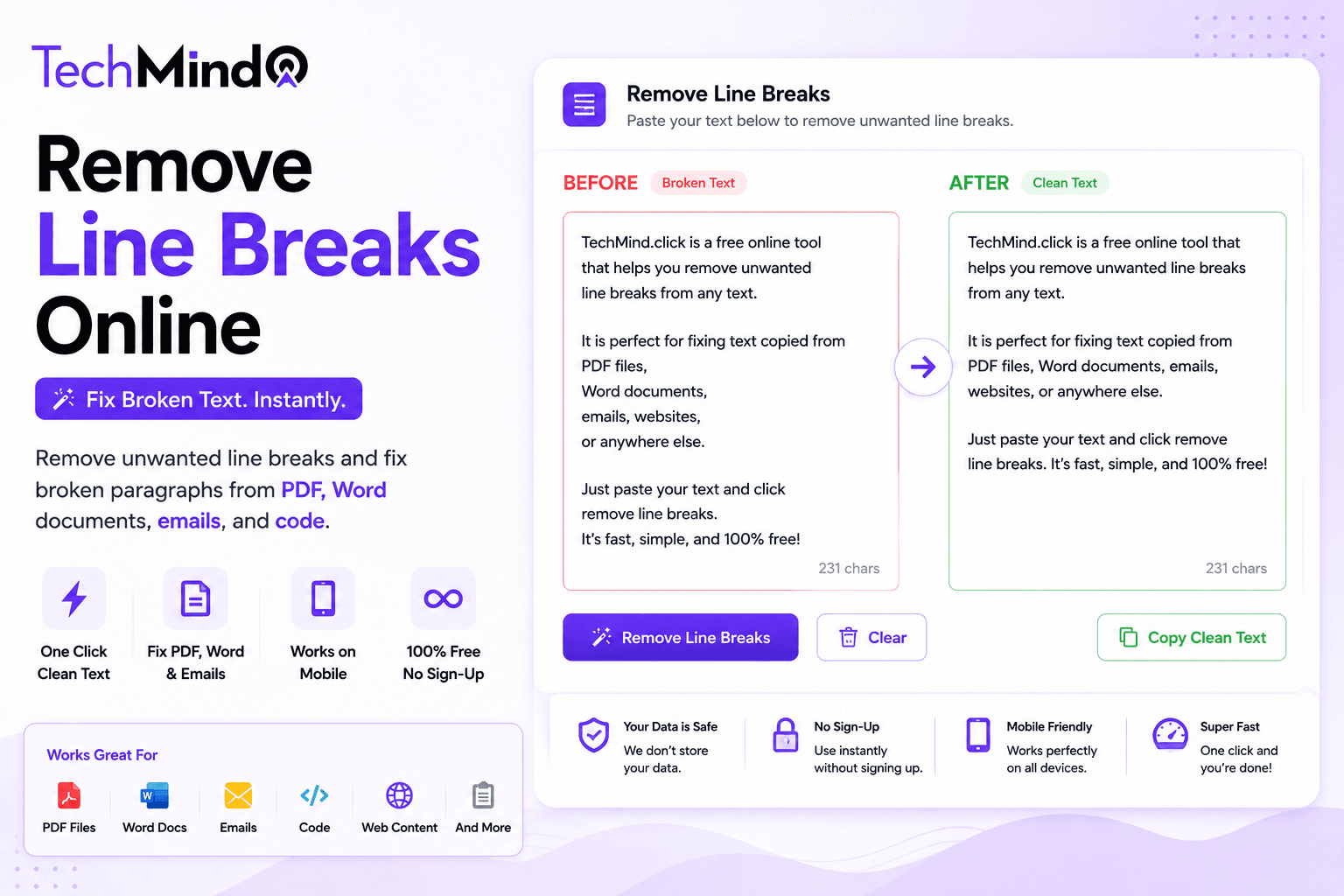
Mark Twain once said, "The difference between the almost right word and the right word is really a large matter." The same is true of line breaks. A paragraph with an unnecessary line break after every sentence is almost readable - but not quite. It disrupts the flow, looks unprofessional, and when it happens to an entire document pasted from a PDF, the result is pages of broken, fragmented text that would take hours to fix manually.
TechMind.click's Remove Line Breaks tool fixes this in one click - free, no sign-up, no character limit, works on any device.
What Are Line Breaks and Why Do They Appear Where You Don't Want Them?
A line break is a hidden character in text that tells the display system to move to the next line. In normal writing, line breaks appear at the end of paragraphs - which is correct and expected. The problem occurs when line breaks appear in the middle of paragraphs - turning flowing prose into a fragmented list of short, disconnected lines.
This is what text looks like with unwanted line breaks:
When you copy text from a PDF, it often comes with line breaks at the end of every printed line. This is because PDFs store text based on page layout, not paragraph structure.
This is what it should look like:
When you copy text from a PDF, it often comes with line breaks at the end of every printed line. This is because PDFs store text based on page layout, not paragraph structure.
The difference is significant - and fixing it manually in a 10,000-word document would take most of a working day.
Why Does This Happen? The Most Common Sources of Unwanted Line Breaks
As Albert Einstein said, "If you can't explain it simply, you don't understand it well enough." Here is the simple explanation for each source:
PDF documents: PDFs are designed for printing and visual display - not for extracting text. A PDF stores text in visual positions on a page, not in logical paragraph structures. When you select and copy text from a PDF, the copy operation translates visual line positions into line break characters. The result is that every line ending in the original PDF layout becomes a hard line break in your pasted text - even in the middle of a sentence. This is the most common source of broken text that content writers, researchers, and students encounter daily.
Microsoft Word documents: Word documents sometimes introduce line breaks when content is copied between different page layouts, templates, or column formats. Copying from a two-column Word layout into a single-column document frequently inserts line breaks at the column width boundaries. Manual line breaks (Shift+Enter in Word) also create hard breaks that survive copy-paste as line break characters.
Email clients: Older email formats, particularly plain-text emails and messages sent through legacy email systems, use hard line breaks at fixed character widths - typically 72 or 76 characters - to ensure readability in all email clients. When you copy this text out of an email and into a document or CMS, those fixed-width line breaks come along with the content. The result is text that breaks mid-sentence every 72 characters regardless of screen width.
Code editors and terminal output: Command-line output, log files, and code comments often have line breaks at fixed widths for readability in terminal environments. When developers copy this text into documentation, reports, or communication channels, the fixed-width line breaks create broken paragraphs that need to be joined into continuous prose.
Web scraping and data exports: Content scraped from websites or exported from databases frequently contains HTML line break tags that convert to actual line breaks in plain text. CRM exports, spreadsheet cell content, and database text fields all commonly produce text with line break characters that need to be removed before use. This is directly related to the text cleaning workflow described in our guide on removing extra spaces from text - both problems often appear together in the same copied content.
How to Remove Line Breaks Using TechMind.click
Steve Jobs once said, "Simplicity is the ultimate sophistication." Removing line breaks should be simple - and it is. Four steps:
- Go to TechMind.click - The text formatter loads on the homepage immediately. No navigation, no account required.
- Paste your text - Copy your broken text from the PDF, Word document, email, or any other source and paste it into the input area. There is no character limit - paste an entire document if needed.
- Click Remove Line Breaks - Found in the Clean section of the toolbar. One click joins all the fragmented lines into clean, continuous paragraphs. The tool replaces each line break with a space, producing natural flowing text.
- Copy the result - Click Copy Text and paste your clean, continuous text into your CMS, document, email, or wherever it needs to go.
The entire process takes under five seconds regardless of the length of the input.
Remove Line Breaks vs Remove Extra Spaces - Use Both Together
APJ Abdul Kalam said, "Excellence is a continuous process and not an accident." Cleaning copied text to a truly professional standard is a two-step process:
Step 1 - Remove Line Breaks: Joins fragmented lines into continuous paragraphs. Fixes the structural problem - the broken paragraph structure caused by PDF layout encoding, email fixed-width formatting, or manual hard returns.
Step 2 - Remove Extra Spaces: After line breaks are removed and replaced with spaces, double spaces may appear at the join points. The Remove Extra Spaces tool cleans these up - ensuring one space between each word throughout the cleaned text.
Both tools are on the same page at TechMind.click - apply them in sequence with two clicks and your copied text is completely clean. The combined workflow is described in our guide on free text formatting tools for content writers.
Before and After - Real Examples
Example 1 - PDF research paper:
Before (pasted from PDF):
The study examined the relationship
between text formatting tools
and writer productivity across
three distinct user groups:
students, content writers,
and software developers.
After Remove Line Breaks:
The study examined the relationship between text formatting tools and writer productivity across three distinct user groups: students, content writers, and software developers.
Example 2 - Old email text:
Before (72-character width email):
Thank you for your message. I wanted
to follow up on the project timeline
we discussed in our last meeting and
confirm the deadline for the first
deliverable.
After Remove Line Breaks:
Thank you for your message. I wanted to follow up on the project timeline we discussed in our last meeting and confirm the deadline for the first deliverable.
Example 3 - Scraped web content:
Before (scraped HTML linebreaks):
TechMind.click provides 18 free text tools
for writers and developers.
No sign-up required.
Works on mobile.
All processing is client-side.
After Remove Line Breaks:
TechMind.click provides 18 free text tools for writers and developers. No sign-up required. Works on mobile. All processing is client-side.
Who Needs This Tool Most
As Winston Churchill observed, "Success is not final, failure is not fatal: it is the courage to continue that counts." The people who benefit most from a reliable line break remover are those who work with large volumes of copied text regularly:
Content writers and bloggers: Research involves copying from academic papers, reports, news articles, and PDFs. Every source brings its own line break format. A remove line breaks tool is as essential to a content writer's workflow as spell check - it is the first step in cleaning any copied reference material before it enters your draft.
Students and academic researchers: Copying from academic PDFs - journal articles, textbooks, research papers - produces the most severe line break problems because academic PDFs are formatted for print columns. A 900-word passage from a two-column academic journal can arrive with line breaks every 6-8 words. TechMind.click cleans an entire paper's worth of copied text in one paste and one click.
SEO professionals and CMS editors: When migrating content between platforms - from one CMS to another, from Google Docs to WordPress, from an old website to a new one - line breaks accumulate from multiple sources. Cleaner text without unnecessary breaks helps search engines index content accurately, making line break removal a legitimate SEO task before publishing.
Developers and data analysts: Log files, API responses, database exports, and terminal output all contain line breaks that need to be removed before content can be processed, displayed, or documented. A quick paste into TechMind.click handles this without writing a script for small datasets. The word count accuracy also improves - our word counter guide explains how hidden line breaks can inflate word counts.
Virtual assistants and data entry professionals: Cleaning client-provided content, formatting data for CRM entry, or preparing text for bulk upload all regularly involves removing line breaks from source material. TechMind.click handles unlimited text length without any account or software installation.
How to Remove Line Breaks in Word, Google Docs, and Other Tools - Manual Methods
For those who prefer working within their existing tools, here are the manual approaches - though they are significantly slower than TechMind.click for large amounts of text:
Microsoft Word - Find and Replace:
- Press Ctrl+H to open Find and Replace
- In the Find field, type: ^p (paragraph mark) or ^l (manual line break)
- In the Replace field, type a single space
- Click Replace All
Google Docs - Find and Replace:
- Press Ctrl+H
- Check the box "Match using regular expressions"
- In the Find field, type: \n
- In the Replace field, type a single space
- Click Replace All
Python - for developers handling bulk text:
text.replace('\n', ' ').replace('\r', ' ')
All of these methods require you to be inside a specific application. TechMind.click works outside of any application - paste from anywhere, clean instantly, paste to anywhere.
Frequently Asked Questions
Q: Does removing line breaks delete my paragraph spacing?
TechMind.click's Remove Line Breaks tool joins lines within paragraphs by replacing each line break with a space. If you have intentional paragraph breaks - blank lines separating paragraphs - these are preserved as double line breaks and are not affected by the tool. The tool targets the unwanted mid-paragraph line breaks while keeping deliberate paragraph separations intact.
Q: Why does my PDF text come out with line breaks everywhere?
PDFs store text based on visual positioning on the page rather than logical paragraph structure. When text is extracted from a PDF by copying, each visual line end in the PDF layout becomes a line break character in the extracted text. This is a fundamental characteristic of the PDF format - the only solution is to remove those line breaks after copying, which TechMind.click does instantly.
Q: Is there a character limit for the remove line breaks tool?
No. TechMind.click processes text of any length entirely in your browser using client-side JavaScript. There is no server upload and no processing limit. An entire book's worth of text - hundreds of thousands of characters - processes in under a second on any modern device.
Q: What is the difference between a line break and a paragraph break?
A line break (also called a newline or hard return) moves text to the next line within the same paragraph. A paragraph break creates a new paragraph - typically with visible spacing above it. In most contexts, unwanted line breaks appear in the middle of paragraphs (where text should flow continuously), while paragraph breaks appear between paragraphs (where separation is intentional). TechMind.click removes the single line breaks that fragment text while preserving double line breaks that indicate intentional paragraph separation.
Q: Can I remove line breaks on my phone?
Yes. TechMind.click is fully mobile-optimised and works on iOS Safari, Android Chrome, and all modern mobile browsers. This is particularly useful for students and professionals who need to clean PDF text on their phones - copy from a mobile PDF reader, open TechMind.click in the browser, paste, click Remove Line Breaks, copy the clean result.
Q: How do I fix text that has line breaks AND extra spaces after removing PDF content?
Use both tools in sequence on TechMind.click: first click Remove Line Breaks to join the fragmented lines, then click Remove Extra Spaces to clean up any double spaces that appeared at the join points. Both tools are on the same page - the entire two-step cleaning process takes under ten seconds.
Q: Does the tool work for non-English text?
Yes. Remove Line Breaks targets line break characters - which are language-independent. The tool works correctly for any language that uses standard Unicode text, including Hindi, Arabic, Chinese, French, German, Spanish, and all other major languages.
Final Thoughts
As Mahatma Gandhi wisely said, "In a gentle way, you can shake the world." Removing unwanted line breaks is a gentle fix - one click - that transforms broken, unprofessional text into clean, flowing content ready for publication, submission, or communication.
Whether you are cleaning a 50-word email reply or a 5,000-word research paper copied from a PDF, TechMind.click handles it in the same way: paste, one click, copy. No account, no character limit, no software.
Try the free Remove Line Breaks tool at TechMind.click - and while you are there, use Remove Extra Spaces for a fully clean result in two clicks.