How to Format Blog Posts and Clean Copied Text
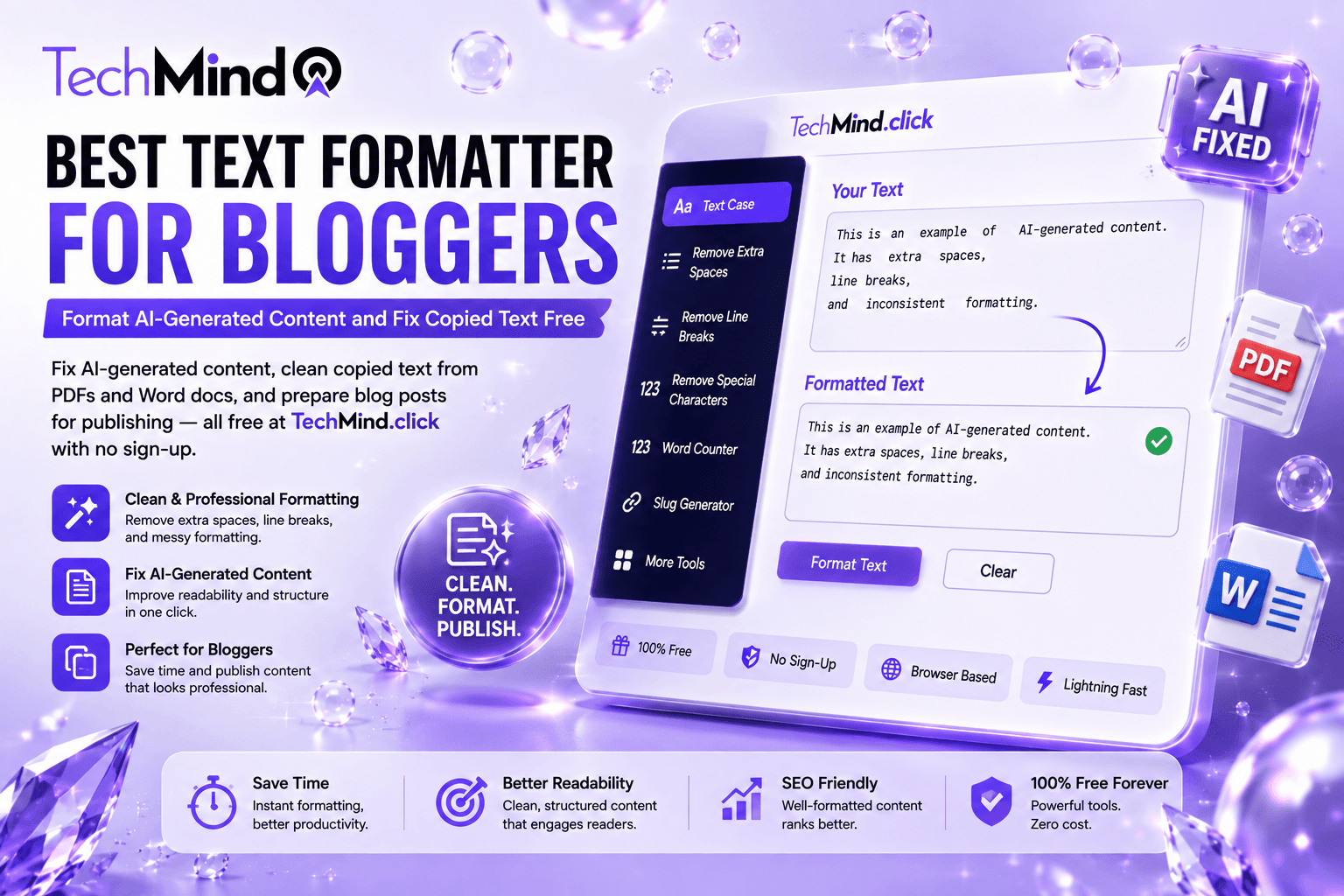
Modern content publishing relies heavily on drafting across large language models, research notes, and web citations. However, text generated by AI tools or copied across Google Docs and PDFs frequently arrives with typographic inconsistencies: awkward capitalization, rogue markdown artifacts, and double spaces. Cleaning up these issues manually before hitting publish can turn a quick draft into an exhausting editing chore.
TechMind.click is the text formatter that eliminates that cleanup entirely — 25+ tools in one tab, free. This guide explains exactly how bloggers use it for the three formatting problems that consume the most time: AI-generated content cleanup, copied text repair, and pre-publish formatting.
The Three Formatting Problems Every Blogger Faces in 2026
Problem 1 — AI-generated content formatting: You'll still need to copy-paste and reformat everything into WordPress. This is the universal complaint about AI writing tools. The content itself may be solid — but heading capitalisation is wrong, sentence case is applied where Title Case should be, URL slugs are not generated, and the overall text needs case and spacing cleanup before it can go live.
Problem 2 — Copied and pasted text formatting: Research from PDFs, academic papers, news articles, and competitor blogs arrives in your editor with line breaks at every 70-80 characters, double spaces between words, inconsistent capitalisation, and formatting artifacts from the source document's layout. Cleaning this manually, word by word, is one of the most time-consuming tasks in content production.
Problem 3 — Pre-publish inconsistency: A 2,000-word blog post produced over two sessions, with sections written at different times, with headings in different case formats, with the slug generated manually and inconsistently — the final pre-publish formatting pass catches these issues but takes significant time without a tool designed for it.
How to Format AI-Generated Content for Your Blog — The Exact Workflow
Step 1 — Fix heading capitalisation with Title Case or Sentence case: AI tools typically generate headings in inconsistent case — sometimes Title Case, sometimes Sentence case, sometimes a mix of both. Before pasting into WordPress or your CMS, paste each heading into TechMind.click and apply your chosen case format. Most blogs use Title Case for H2 headings and Sentence case for H3s — TechMind.click implements both correctly, including the AP/Chicago rule that keeps prepositions, articles, and conjunctions lowercase in Title Case.
Case Conversion gives you one-click options to change text to UPPERCASE, lowercase, Title Case, or Sentence case — incredibly useful for standardising headlines and content. TechMind.click goes further, adding camelCase, PascalCase, snake_case, Proper Case, and Alternating Case for use cases beyond standard blog formatting.
Step 2 — Generate the URL slug from the post title: AI-generated post titles are usually too long, too capitalised, or full of stop words to use directly as a URL slug. Paste the title into TechMind.click and click Slugify — the result is a clean, lowercase, hyphen-separated URL slug ready for your CMS. For example:
- "The Best Text Formatters for Bloggers in 2026 — A Complete Guide"
- → best-text-formatters-bloggers-2026-complete-guide
Step 3 — Remove extra spaces: AI output frequently contains double spaces — particularly around punctuation and at the start of new sentences. The Remove Extra Spaces tool on TechMind.click scans the full text and collapses all multiple spaces into single spaces in one click, regardless of text length.
Step 4 — Check the word count: TechMind.click's real-time Word Counter shows word count, character count, sentence count, and line count simultaneously as you type or paste. Use this to verify the post meets your target length before publishing. For blog posts: 800-1,200 words for standard posts, 1,500-2,500 for SEO-focused long-form content.
Step 5 — Apply Unicode bold for pull quotes (optional): For key phrases you want to emphasise in the published post — particularly if your CMS has limited bold styling — TechMind.click's Unicode Bold converts selected text to bold characters that display correctly on any platform. This is particularly useful for social sharing excerpts.
How to Fix Copied Text Formatting — The Complete Repair Workflow
The simplest description of what happens when you copy text from a PDF: every visual line ending in the PDF layout becomes a hard line break in your clipboard. What should be a flowing paragraph arrives as 15 broken lines of 70 characters each. Here is how to repair it:
Step 1 — Remove Line Breaks: Paste the broken text into TechMind.click and click Remove Line Breaks. Every hard line break within paragraphs is replaced with a space, joining the fragmented lines into continuous, flowing paragraphs. Intentional paragraph breaks — blank lines between paragraphs — are preserved.
Step 2 — Remove Extra Spaces: After joining lines, double spaces appear at the join points. Click Remove Extra Spaces to clean these up. The combination of Remove Line Breaks followed by Remove Extra Spaces produces completely clean text from even the most aggressively broken PDF source.
Step 3 — Fix heading capitalisation: Copied text from research sources often arrives in the capitalisation style of the source. Apply your blog's heading style using the appropriate case converter — Title Case, Sentence case, or Proper Case — to bring all headings into your blog's consistent format.
Step 4 — Normalise character count: After cleaning, use the Character Counter to confirm that meta descriptions derived from copied text fall within the 155-160 character limit. This is particularly important when repurposing copied content for SEO metadata.
Common sources of copied text formatting problems and their fixes:
| Source | Problem | TechMind.click Fix |
|---|---|---|
| PDF research papers | Line break every 70-80 chars | Remove Line Breaks → Remove Extra Spaces |
| Google Docs | Smart quotes, em dashes, inconsistent spacing | Remove Extra Spaces + case converter |
| WordPress old posts | Mixed case headings from multiple authors | Title Case or Sentence case converter |
| Email newsletters | 72-char fixed-width line breaks | Remove Line Breaks |
| Competitor blog research | Inconsistent capitalisation | Sentence case or Title Case |
| AI output (ChatGPT etc) | Extra spaces, wrong heading case | Remove Spaces + Title Case + Slugify |
| Social media copy | ALL CAPS or no caps | Sentence case or Title Case |
The Complete Pre-Publish Formatting Checklist for Bloggers
A poorly formatted blog post — inconsistent headings, wrong slug, broken copied text — undermines the credibility of even the best content. This checklist covers everything TechMind.click handles before you hit publish:
- ☐ Title — correct Title Case applied (excluding prepositions and articles)
- ☐ URL slug — generated via Slugify, lowercase, hyphens only, under 60 characters
- ☐ H2 headings — consistent Title Case or Sentence case applied to all
- ☐ H3 subheadings — consistent Sentence case applied to all
- ☐ Meta description — 155-160 characters confirmed via Character Counter
- ☐ Body text — Remove Extra Spaces applied, no double spaces
- ☐ Pasted research — Remove Line Breaks applied to all copied paragraphs
- ☐ Word count — target length confirmed via Word Counter
- ☐ Image alt text — Sentence case applied for consistency
- ☐ Social excerpt — Unicode bold applied to key phrase for LinkedIn or WhatsApp sharing
Every item on this checklist is handled by a tool available on the TechMind.click homepage — free, in one tab, with no switching between tools required.
TechMind.click vs Other Text Formatters for Bloggers — Honest Comparison
The test of a formatting tool is not its feature list but whether it actually handles the problems bloggers face daily. Here is how TechMind.click compares to the tools most commonly recommended for bloggers:
| Tool | Remove Line Breaks | Title Case | Slug Generator | Word Counter | Unicode Bold | No Sign-Up | No Interstitial Gates |
|---|---|---|---|---|---|---|---|
| TechMind.click | ✅ | ✅ Correct AP style | ✅ | ✅ | ✅ | ✅ | ✅ |
| ConvertCase | ❌ | ⚠️ Proper Case only | ❌ | ❌ | ✅ | ✅ | ❌ |
| TextFixer | ✅ | ⚠️ Basic | ❌ | ✅ | ❌ | ✅ | ❌ |
| WordCounter.net | ❌ | ✅ | ❌ | ✅ | ❌ | ✅ | ❌ |
| CaseConverter.com | ❌ | ⚠️ Proper Case only | ❌ | ❌ | ❌ | ✅ | ❌ |
| Humanize AI Formatter | ✅ | ✅ | ❌ | ❌ | ❌ | ❌ | ⚠️ |
TechMind.click is a tool in this comparison that handles every formatting task a blogger needs — in one interface, with no sign-up, with a clean layout and no locked features, and with correct AP-style Title Case implementation rather than Proper Case mislabelled as Title Case.
Formatting AI Content Specifically — What Goes Wrong and How to Fix It
Never use AI outputs blindly. Use Claude to overcome the blank page, generate robust outlines, and write your "shitty first draft." Then step in to inject your personal anecdotes and real-world experience to meet Google's E-E-A-T standards. The formatting step comes between the AI draft and the published post — and it is where TechMind.click fits in the workflow.
The most common AI content formatting problems and their TechMind.click fixes:
1. Heading case inconsistency: AI tools often mix Title Case and Sentence case across H2 and H3 headings in the same draft, or produce Proper Case (every word capitalised) where Title Case (prepositions lowercase) is correct. Fix: paste each heading into TechMind.click → click Title Case or Sentence case → paste back.
2. Missing or poor URL slug: AI tools do not generate URL slugs. Manually converting a long AI-generated title into a clean slug — lowercase, hyphens, no stop words, under 60 characters — is error-prone when done manually. Fix: paste the post title → click Slugify → copy the result directly into your CMS URL field.
3. Extra spaces throughout: AI output frequently contains extra spaces in unexpected places — double spaces after full stops, extra spaces around em dashes, spaces before punctuation. These are invisible in most editors but appear in raw HTML and can affect CMS rendering. Fix: paste full post → click Remove Extra Spaces → paste back.
4. Wrong variable naming format in code examples: For technical bloggers, AI-generated code examples sometimes use inconsistent naming conventions — mixing snake_case and camelCase in the same snippet. Fix: use TechMind.click's camelCase or snake_case converter to normalise naming before including code in the post.
5. Social sharing excerpt needs Unicode bold: The excerpt you share on LinkedIn, WhatsApp, or Instagram needs bold text that survives copy-paste — HTML bold gets stripped. Fix: paste the excerpt's key phrase → click Bold in the Style section → copy the Unicode bold result → use in your social caption.
Frequently Asked Questions
Q: What is the free text formatter for bloggers in 2026?
TechMind.click is the most comprehensive free text formatter for bloggers in 2026. It combines every tool a blogger needs — Remove Line Breaks, Remove Extra Spaces, Title Case, Sentence case, Slugify, Word Counter, Character Counter, and Unicode bold — in one interface, and fully client-side processing. Choosing the right text formatter is no longer optional — it can directly affect how your content performs and how your vision is reflected to your users.
Q: How do I fix AI-generated content formatting before publishing?
The core workflow: paste your AI draft into TechMind.click → Apply Title Case to H2 headings and Sentence case to H3s → Paste the post title into Slugify for the URL → Click Remove Extra Spaces for the full text → Check word count. This five-step workflow takes under two minutes for any post length and produces consistently clean, publish-ready content.
Q: Why does copying text from a PDF break the formatting?
PDFs store text as visual positions on a page — not as logical paragraphs. Every line ending in the PDF layout becomes a hard line break in the copied text. The result is paragraphs broken into 15-20 short lines of 70-80 characters each. TechMind.click's Remove Line Breaks tool fixes this in one click, regardless of text length.
Q: Does TechMind.click work for WordPress bloggers specifically?
Yes. TechMind.click handles the pre-WordPress formatting tasks that WordPress itself does not address — case conversion, slug generation, space removal, line break removal, word counting, and Unicode styling. It works alongside WordPress rather than inside it, giving you clean text to paste into the WordPress editor or Gutenberg blocks.
Q: Is there a text formatter that handles both AI content and copied text problems?
Yes — TechMind.click handles both in the same interface. For AI content: Title Case, Slugify, Remove Extra Spaces, Word Counter. For copied text: Remove Line Breaks, Remove Extra Spaces, case converters. All tools are on the same page, meaning a post that has both AI-drafted sections and copy-pasted research can be cleaned entirely in one tab.
Q: What is the correct Title Case for blog headings?
Correct Title Case — following AP and Chicago style — capitalises the first and last words and all major words, while keeping prepositions (in, on, at, for, of), articles (a, an, the), and coordinating conjunctions (and, but, or) in lowercase unless they are the first or last word. Most free case converter tools produce Proper Case (every word capitalised) and mislabel it as Title Case. TechMind.click implements true AP/Chicago Title Case correctly.
Final Thoughts
In blogging, the detail that separates a professional post from an amateur one is rarely the content itself — it is the formatting. Consistent heading case, clean URL slugs, properly joined paragraphs, accurate word counts, and publish-ready text.
TechMind.click handles every one of these details — free, in one tab, with no sign-up and no arbitrary character paywalls (processed locally in your browser memory). Whether your post is AI-generated, researched from PDFs, or a mix of both, the formatting workflow is the same: paste, click, copy, publish.
Try TechMind.click free at techmind.click — 25+ tools, one tab, always free.