QR Code Label Generator - Add Custom Text, Bold, Italic & Colors to Your QR Code Free
Admin
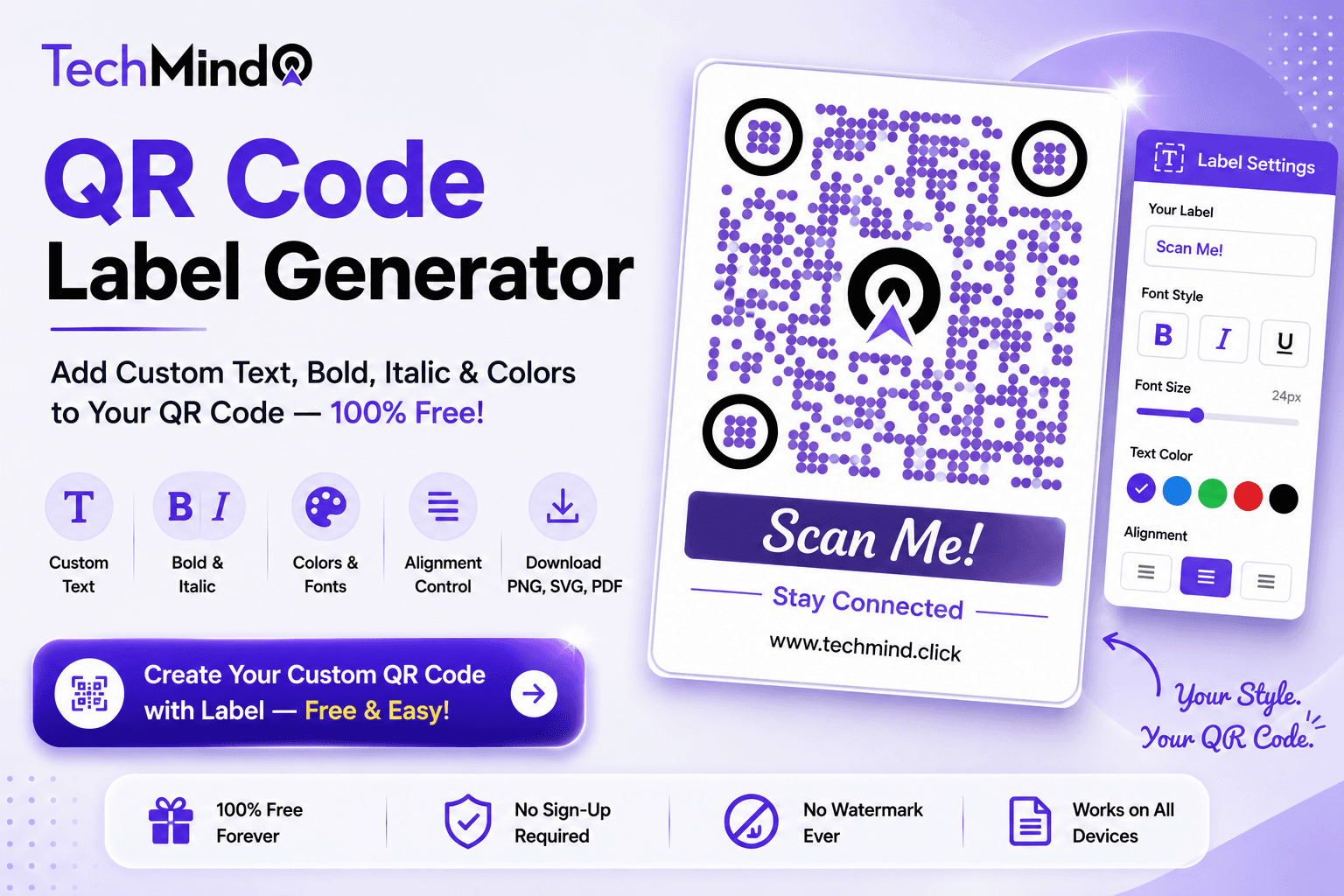
Mark Twain once said, "The difference between the almost right word and the right word is really a large matter." The difference between a QR code with no label and a QR code that says "Scan to follow us on Instagram" in your brand colour is exactly that - small in effort, large in impact. A label tells the viewer what to do and why. TechMind.click's QR Code Generator now includes full Label Control: add custom text above or below any QR code with complete styling - bold, italic, font size, color, and alignment - all embedded directly into your download.
What Is QR Code Label Control?
QR Code Label Control is the ability to add a styled text label to your QR code - positioned above or below the code - as part of the generated output. The label is not a separate element you add in a design tool afterwards. It is embedded directly into the QR code image when you download it, giving you a single, print-ready file that contains both the QR code and the text.
TechMind.click's Label Control gives you full styling options:
- Text content - any text you choose, in any language
- Font weight - Bold, Italic, or Normal
- Font size - choose the size that fits your design
- Color - any colour to match your brand palette
- Alignment - Left, Center, or Right
- Position - Above the QR code or Below it
Why a Label Makes a QR Code Significantly More Effective
As Albert Einstein said, "If you can't explain it simply, you don't understand it well enough." A QR code without a label makes the viewer do the work of understanding. A QR code with a label does that work for them.
Consider the difference in these two scenarios:
Without label: A plain QR code on a restaurant table. The customer sees it and wonders - is this for the menu? For ordering? For a loyalty programme? For a review? The uncertainty creates hesitation. Some scan it anyway. Many do not.
With label: The same QR code, with the text "Scan to view our menu" in the restaurant's brand colour, centered below the code. The customer knows exactly what will happen. There is no hesitation. Scan rates increase measurably.
Research on QR code effectiveness consistently finds that QR codes with a clear call-to-action instruction outperform unlabelled codes - often by a wide margin. The label is not decorative. It is functional.
Label Examples - Ready to Use
APJ Abdul Kalam observed, "Excellence is a continuous process and not an accident." A well-chosen label is a small piece of that excellence. Here are effective label examples by use case:
Social media growth:
- Scan to follow us on Instagram
- Follow our YouTube channel
- Connect with us on LinkedIn
- Join our Facebook community
- Message us on WhatsApp
Business and hospitality:
- Scan to view our menu
- Scan to book a table
- Scan to visit our website
- Scan to leave us a review
- Scan to download our app
Wi-Fi and connectivity:
- Scan to connect to Wi-Fi
- Free Wi-Fi - scan to join
- Guest network - scan to connect
Events and networking:
- Scan to register for the event
- Scan to save my contact
- Scan to view my portfolio
- Scan to get the presentation slides
Products and packaging:
- Scan to watch the tutorial
- Scan to register your product
- Scan to read reviews
- Scan for setup instructions
How to Add a Label to Your QR Code on TechMind.click
Winston Churchill said, "Success is not final, failure is not fatal: it is the courage to continue that counts." Adding a label to your QR code takes about thirty seconds:
- Go to TechMind.click QR Code Generator - techmind.click/qr-code-generator
- Set up your QR code - choose your QR type (URL, Wi-Fi, social media, contact, etc.) and enter your content.
- Open the Label section - in the QR code customiser, find the Label Control panel.
- Type your label text - enter your call-to-action, instruction, or descriptive text.
- Style the label - select Bold, Italic, or Normal; choose your font size; pick a colour to match your brand; set alignment to Left, Center, or Right.
- Set position - choose whether the label appears above or below the QR code.
- Download - your QR code with the embedded label downloads as a single file in PNG, SVG, or PDF format.
Label Styling Guide - What Works Best in Print
As Steve Jobs said, "Design is not just what it looks like and feels like. Design is how it works." A label that looks good on screen but becomes unreadable when printed small defeats its purpose. Here are practical guidelines:
Font weight: For business cards and small print - use Bold. The increased weight remains readable at small sizes where Normal weight can become too thin. For posters and large-format prints - Normal or Italic works well since size compensates for weight.
Font size: For business cards - keep label text proportional to the QR code. A label that is too large visually competes with the QR code itself. For table cards and A4 flyers - a larger label size works well and helps legibility from a distance.
Color: For maximum readability on white backgrounds - use dark colours (dark grey, navy, or your dark brand colour) rather than black, which can look harsh. Avoid light colours for labels - they do not print reliably on standard paper. For coloured backgrounds - ensure high contrast between the label colour and the background.
Alignment: Centered labels work for most uses - they look balanced and draw the eye naturally to the QR code above or below. Left-aligned labels work well when the QR code is part of a larger design with other left-aligned text elements.
Position: Labels positioned below the QR code are the most common and expected placement - people scan first, then read. Labels above the code work as an instruction or teaser: "Scan here for exclusive access" placed above primes the viewer before they scan. For business cards - below is almost always the right choice.
Label Control vs Design Software - Why the Integrated Approach Wins
The traditional workflow for adding a label to a QR code involves generating a plain QR code from one tool, then importing it into Canva, Photoshop, Word, or Google Slides to add a text element separately. This creates two problems:
File management complexity: You end up managing a QR code image file and a design file separately. When the QR code changes - the URL gets updated, the design gets refreshed - you need to re-import and re-align every time.
Export inconsistency: Text added in design software exports differently depending on the export settings, resolution, and format. Text that looks sharp at 300dpi in Canva may not export correctly when the design is resized or used in a different context.
TechMind.click embeds the label directly into the QR code image during generation. The result is a single file - PNG, SVG, or PDF - where the label and the QR code are one unit, always correctly proportioned, always print-ready. This also connects naturally with the broader text formatting toolkit available at TechMind.click - if you need Unicode bold text for social captions or custom QR codes for other purposes, everything is in one place.
Frequently Asked Questions
Q: Can I add a label to any type of QR code?
Yes. Label Control works on all QR code types available on TechMind.click - URL, text, Wi-Fi, contact (vCard), email, phone, and all Social Media QR Code options (Instagram, Facebook, YouTube, Twitter/X, LinkedIn, WhatsApp). The label styling options are identical across all types.
Q: Is the label embedded in the download, or do I need to add it separately in another tool?
The label is fully embedded in the downloaded file. When you download the QR code as PNG, SVG, or PDF, the label is part of the image - there is no need to open any other application to add text. One download, one print-ready file.
Q: Can I use a label in a language other than English?
Yes. The label text field accepts any Unicode text, including Hindi, Arabic, Chinese, French, Spanish, German, and all other languages that use standard Unicode characters. Type your label in any language and it will appear correctly in the download.
Q: What font size should I use for a business card label?
For a standard business card (85mm x 55mm), a label font size of 12-14pt works well when the QR code occupies roughly 25-30mm of the card. Adjust based on the proportion in the preview before downloading. Bold weight is recommended at smaller sizes for print legibility.
Q: Does the label affect the scannability of the QR code?
No. The label is positioned above or below the QR code, entirely outside the QR pattern itself. It has no effect on the scanning performance of the code. The QR pattern and the label are separate visual elements in the same file.
Q: Is there a character limit for the label text?
There is no hard character limit, but practically, shorter labels work better - they fit the visual proportion of the QR code more naturally and remain readable at small print sizes. Labels of 3-7 words are optimal for most use cases.
Q: Can I use an italic label with a Social Media QR Code?
Yes. All Label Control styling options - including italic - are available in combination with Social Media QR Codes. You can have a platform-styled Instagram QR code with an italic, custom-coloured label beneath it.
Final Thoughts
As Mahatma Gandhi said, "In a gentle way, you can shake the world." A label below a QR code is one of those gentle additions - small in effort, meaningful in impact. It removes uncertainty, communicates intent, and drives the action the code was built to prompt.
TechMind.click's Label Control brings this capability to everyone, at no cost, with no account required. Every styling option - bold, italic, font size, colour, alignment, position - is available from the first visit.
Add a custom label to your QR code now at TechMind.click QR Code Generator - free, no sign-up, download as PNG, SVG, or PDF.