QR Code for Restaurant Menu, Business Card & Wi-Fi - Free Generator, No Sign-Up
Admin
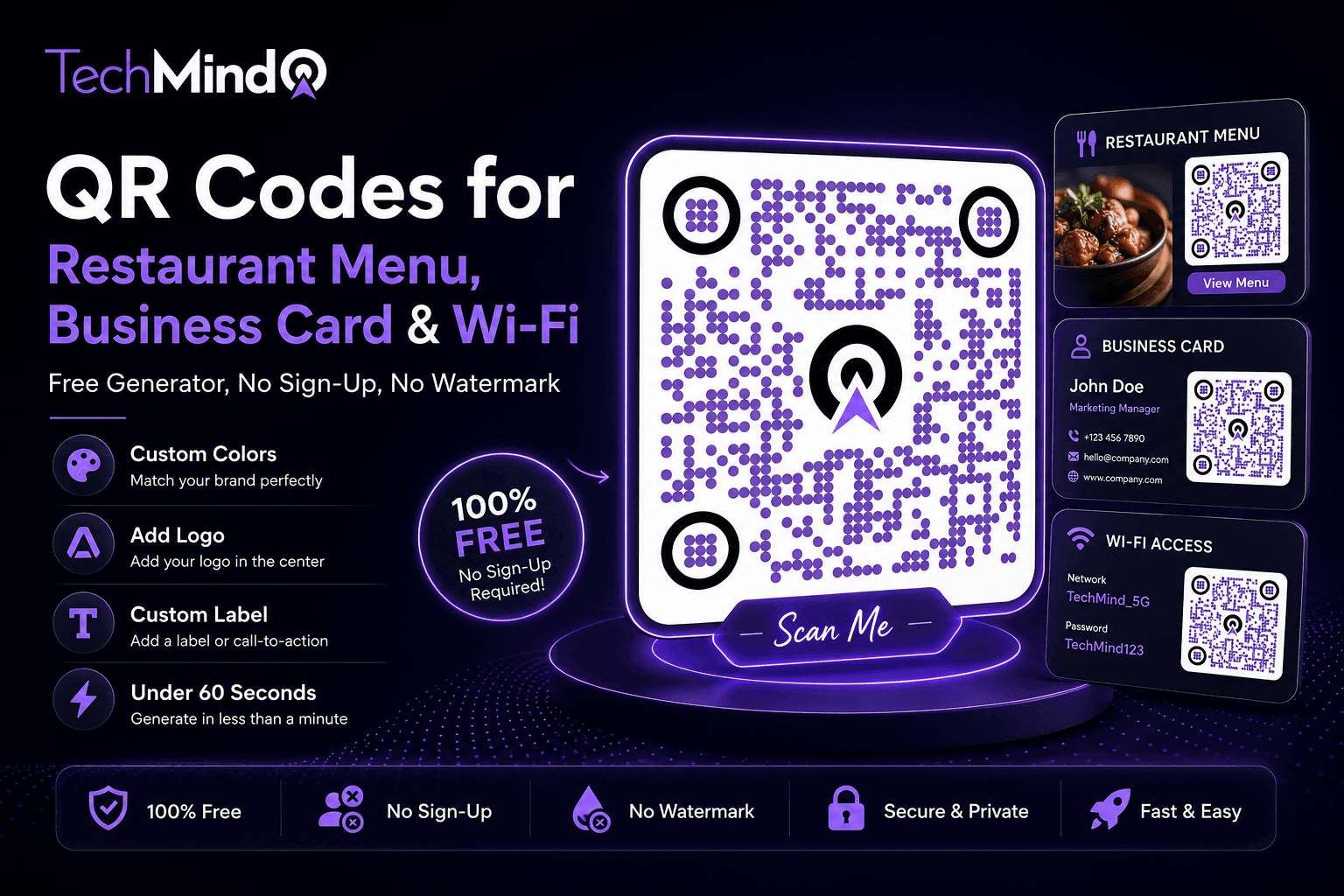
APJ Abdul Kalam once said, "Don't take rest after your first victory because if you fail in second, more lips are waiting to say that your first victory was just luck." A QR code on your restaurant table, your business card, or your Wi-Fi sign is not a one-time experiment. It is a permanent part of how you connect with customers, colleagues, and guests - and it should be done right, from the start, without a recurring subscription or a watermark on the result.
This guide covers the five most common real-world QR code use cases in 2026 - restaurant menus, business cards, Wi-Fi sharing, event posters, and product packaging - with exact steps for generating the right type of QR code for each one, free, using TechMind.click.
QR Code for Restaurant Menu - The Most-Searched Use Case in 2026
Restaurants replaced physical menu cards with QR code menus - a QR code for restaurants that redirects users to a digital menu. Though the pandemic has almost vanished, QR codes in restaurants offer benefits beyond a contactless experience. They help restaurants provide a remarkable dining experience and enhance staff efficiency. Hence, QR codes in restaurants are here to stay for years to come.
The practical benefit for independent restaurants is significant: a physical menu reprints every time prices change, dishes are added, or seasonal items rotate. A QR code menu links to a page that can be updated instantly without touching the printed code - as long as the URL itself stays the same, the QR code remains valid.
How to create a restaurant menu QR code on TechMind.click:
- Go to techmind.click/qr-code-generator
- Select URL as the QR type
- Paste your menu page URL - your website's menu page, a Google Drive PDF link, or a Canva menu share link
- Add your restaurant logo to the centre
- Set your brand colours for the foreground
- Add a label below: "Scan to view our menu" in your brand colour, bold, centred
- Download as PDF for direct print placement on table cards
Important note for restaurant owners: Use a URL that you control and can update - your own website menu page rather than a direct link to a PDF file. When you update the PDF, the URL changes and the QR code breaks. A page URL that always shows your current menu (and links to whatever file is current) ensures your printed QR codes never need replacing.
What competitors charge for this: QR Menu Generator offers a free plan with up to 5 categories and 20 products. The Pro plan at $9.90/month unlocks unlimited items, allergen tags, analytics, and more. TechMind.click generates a restaurant menu QR code free, permanently, with no product or category limits - because it links directly to your own menu URL rather than hosting the menu itself. No subscription. No platform dependency.
QR Code for Business Card - vCard That Saves Directly to Any Phone
As Warren Buffett said, "It takes 20 years to build a reputation and five minutes to ruin it." A business card is often a first impression. A QR code on a business card that saves your contact information with one scan is both more practical and more memorable than a card someone has to retype manually.
A QR business card, or vCard, is a digital version of a physical business card that you can print or share with your contacts online. Once someone scans your QR code, they'll have the option to save your contact info, such as your email address or phone number, directly to their device. While paper business cards get lost or damaged easily, a vCard QR code puts your info directly into your contact's phone.
How to create a vCard QR code on TechMind.click:
- Select vCard (Contact) as the QR type
- Enter your name, phone number, email address, company name, and website URL
- Upload your logo or headshot to the centre of the QR code
- Set colours to match your brand or business card design
- Add a label: "Scan to save my contact"
- Download as SVG for professional printing - SVG scales to any card size without pixelation
Static vs dynamic for business cards: Static QR codes make sense for genuine one-off use: a poster at a single event, a printed flyer that will never be reprinted. For a business card that contains your stable contact information - name, phone, email, website - a static vCard QR code is perfectly sufficient. Your contact details change rarely enough that reprinting when they do change is not a meaningful inconvenience. TechMind.click's free static vCard QR codes are permanent, private, and require no account.
QR Code for Wi-Fi Password - One Scan Instead of Typing
Steve Jobs said, "Simplicity is the ultimate sophistication." Asking a guest to type a twenty-character Wi-Fi password is the opposite of simplicity. A Wi-Fi QR code placed near the router eliminates the request, the repetition, and the risk of typos entirely.
A Wi-Fi QR code encodes the network name (SSID) and password in a standardised format that iPhone and Android camera apps recognise natively - no QR reader app required. When scanned, the phone prompts the user to connect directly.
How to create a Wi-Fi QR code on TechMind.click:
- Select Wi-Fi as the QR type
- Enter your network name (SSID) exactly as it appears in Wi-Fi settings
- Enter your Wi-Fi password
- Select security type - WPA2 for most modern routers
- Add a label: "Scan to connect to Wi-Fi"
- Download as PNG and print on a small card or sign near the router
Where to place Wi-Fi QR codes:
- Home - near the router, visible to arriving guests
- Restaurant or cafe - on each table alongside the menu QR code
- Hotel or guesthouse - in the room, near the television or desk
- Office reception - visible to visitors waiting
- Event venue - at the registration desk or displayed on a screen
- Clinic or waiting room - reducing front desk interruptions
Create a QR code for your Wi-Fi network so guests can connect instantly without entering a password. Perfect for homes, offices, restaurants, hotels, events, and public spaces. TechMind.click generates this free, with no account and no platform to depend on for the code to continue working.
QR Code for Event Poster - Convert Print Attention Into Digital Action
As Maya Angelou wrote, "Words mean more than what is set down on paper." A well-placed QR code on a poster converts physical attention into a digital action - a registration, a ticket purchase, a social media follow - at the exact moment when interest is highest.
Add QR codes to print ads, flyers, posters, billboards, and branded QR code stickers to bridge the gap between offline and online. Link to landing pages, product pages, video content, or QR code coupons.
How to create an event poster QR code on TechMind.click:
- Select URL as the QR type
- Paste your event registration link, ticket purchase URL, or event details page
- Choose high-contrast colours - dark foreground on white background scans most reliably at distance
- Add your event logo if applicable
- Add a label: "Scan to register" or "Scan for tickets" in a bold, visible size
- Download as SVG or high-resolution PNG for large-format printing
Size guidelines for poster QR codes: For an A3 poster, print the QR code at a minimum of 4cm x 4cm - ideally 6-8cm. Larger codes can be scanned from further away, which matters for posters viewed at arm's length or across a room. Always test on the actual printed output before committing to a large print run.
QR Code for Product Packaging - The Physical-to-Digital Bridge
Winston Churchill said, "Success is not final, failure is not fatal: it is the courage to continue that counts." A product sale is not the end of a customer relationship - it is the beginning. A QR code on packaging that links to tutorials, product registration, or brand social media extends that relationship beyond the point of purchase.
How to create a product packaging QR code on TechMind.click:
- Select URL as the QR type
- Use a URL you control - your product page, a tutorial video, or your brand's YouTube channel
- Add your brand logo to the centre for immediate recognition
- Keep the label short: "Scan to watch the tutorial" or "Scan to register"
- Download as SVG - packaging often requires vector formats for production workflows
Packaging QR code best practices:
- Minimum print size on packaging: 2.5cm x 2.5cm for reliable scanning
- Maintain a white quiet zone (border) around the code - at least 4 QR modules wide
- Avoid printing on curved surfaces where possible - flat or slightly curved is fine, heavily curved causes scan failures
- Use high error correction - a logo in the centre uses error correction capacity, so ensure the QR code is generated at the correct size to maintain scannability
QR Code for Resume - Stand Out Before the Interview
A QR code on a printed resume linking to your portfolio, LinkedIn profile, or GitHub account turns a static document into an interactive one. Lawyers, accountants, consultants, and freelancers use vCard QR codes on business cards and email signatures. Share credentials, portfolios, or booking links with a single scan. The same principle applies to resumes - a recruiter who scans your QR code and lands on your portfolio within five seconds of picking up your CV is a recruiter who sees more of your work.
How to create a resume QR code on TechMind.click:
- Select URL as the QR type
- Paste your LinkedIn profile URL, portfolio URL, or GitHub profile
- Keep the design minimal - a small, clean black-and-white QR code suits a resume's professional tone
- Label: "Scan to view my portfolio" in a small, matching font size
- Download as PNG and place in the header or footer of your resume document
Why TechMind.click for All of These Use Cases
Every use case above has one thing in common: the QR code only needs to work. It does not need to be editable after printing. It does not need scan analytics. It needs to be reliable, professional, and permanent.
That is exactly what a static QR code generator provides - and TechMind.click provides it for every use case above, free, with:
- No sign-up at any step
- No watermark on any download
- No server upload - your content stays in your browser
- No expiration - static codes work indefinitely
- Logo embedding and custom colours - free, always
- Label Control - bold, italic, custom colour, font size, alignment, above or below
- Social Media QR Codes - pre-styled for Instagram, Facebook, YouTube, Twitter/X, LinkedIn, WhatsApp
- Download as PNG, SVG, or PDF
Frequently Asked Questions
Q: Can I create a QR code for a restaurant menu for free without a subscription?
Yes. TechMind.click generates a URL QR code linking to your menu page - completely free, no subscription, no account, no watermark. Link to your website's menu page, a Google Drive PDF, or any hosted menu URL. The QR code is a static code that never expires, so it works indefinitely as long as the destination URL remains active.
Q: What is the best free vCard QR code generator for business cards?
TechMind.click generates vCard QR codes free, with no account required. Enter your name, phone, email, company, and website - the code is generated instantly, scannable by any iPhone or Android camera, and saves the contact information directly to the scanner's phone. Download as SVG for professional print quality.
Q: How do I create a Wi-Fi QR code that works on iPhone and Android?
TechMind.click's Wi-Fi QR code uses the standard WiFi URI format (WIFI:T:WPA;S:SSID;P:password;;) which is natively recognised by iPhone camera apps (iOS 11+) and Android camera apps (Android 10+). No QR reader app needed. Select Wi-Fi as the QR type, enter your SSID and password, and download.
Q: Does TechMind.click add a watermark to QR codes?
No. TechMind.click never adds a watermark, logo, or branding to your downloaded QR code. The file you download is yours to use on any commercial or personal material without any attribution requirement.
Q: What size should I print a QR code for a restaurant table card?
For a standard A6 or A5 table card, print the QR code at 4-6cm x 4-6cm. This ensures reliable scanning at typical table-to-phone distances (30-50cm). Always test the printed code with a phone camera before committing to a large print run. Download in SVG format for the sharpest print output at any size.
Q: Can I use TechMind.click QR codes for commercial use on product packaging?
Yes. There are no restrictions on commercial use. Download in SVG format for packaging production - SVG is a vector format that scales to any print size without losing quality or sharpness, suitable for professional printing workflows.
Final Thoughts
As Mahatma Gandhi said, "In a gentle way, you can shake the world." A QR code on a restaurant table, a business card, a Wi-Fi sign, an event poster, or a product label is a gentle thing. But deployed correctly - with clear labelling, your logo, and the right URL - it quietly builds connections, removes friction, and extends your reach beyond what print alone can achieve.
Every use case in this guide is available free at TechMind.click QR Code Generator - no account, no watermark, no expiration. From opening the page to downloading your print-ready QR code: under 60 seconds.